

INTRODUCING
ONEPORTAL

About OnePortal

About OnePortal

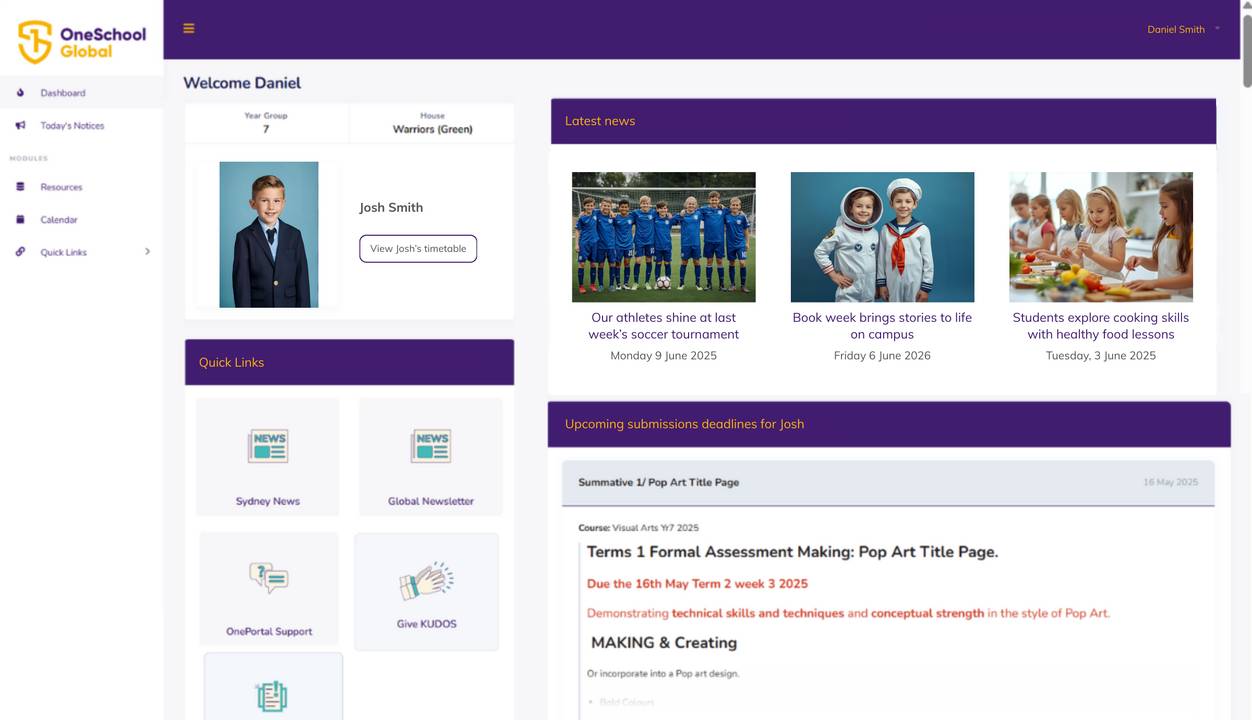
OnePortal is a tool for OSG parents that creates a single access point for your child(ren)’s student information and systems. Available via mobile app and desktop, OnePortal’s long-term goal is to improve and simplify the parent information experience globally.

Parents need to remember their log-in details to OnePortal – and that’s it! Once inside of OnePortal, they can navigate to other systems such as Canvas without an additional log-in process. OnePortal was initially introduced in late 2024 in the Southern Hemisphere, and several months later in the Northern Hemisphere. Information was shared directly with parents for their optional use.

It currently consolidates the following information:

  • information from Canvas, including “Upcoming Submission Deadlines” and “Recent Feedback”
  • student class timetables
  • campus calendars (if available)
  • links to other systems including regional Student Information Systems: BromCom (UK), Powerschool (US), Engage (EU)

More features such as House Points, attendance information and MAP results will be added in the coming months.

Click here to leave feedback

Campus newsletters are moving to OnePortal

All OSG campuses will soon begin using OnePortal to create and send newsletters.

What’s changing:

  • Modern design: A cleaner, more readable newsletter layout.
  • Newsletter library: A new webpage for all current and past newsletters, including those from other OSG campuses across your region.
  • Student access: Students will find links to all regional newsletter libraries in their school laptop bookmarks, so they can explore what’s happening across our global community.
  • Email updates: Only OSG parents will receive the newsletter by email, but they can forward emails to other family members if they wish. Family members can also access the newsletter library at any time.

Behind the scenes, the newsletter process will be more efficient, allowing Campus Office Administrators to spend more time supporting students.

Stay tuned for more information in your campus newsletter in the coming months.


For OSG parents: how to access OnePortal

Only two steps are required to access OnePortal for the first time

1. Open the OnePortal welcome email which contains a link to quickly set up your access by setting a OnePortal password. OSG parents received their Welcome email in late 2024 (AU/NZ/UK) or early 2025 (EU and UK). It was sent to the same email address that you use to access to your regional Student Information System (BromCom/PowerSchool/Engage). Parents that are new to OneSchool receive this information as part of the onboarding ahead of the new school year.

2. Visit OnePortal using a web browser on your phone or computer desktop, and sign in using the password you set in step 1. The OnePortal URL for your region is:

Additional steps required to set up the app for the first time

If you would like to access OnePortal via the app, called “Portal HQ”,:

3. your household Streamline3 administrator will need to approve the “PortalHQ” app via Streamline3

4. you will need to open OnePortal on your desktop browser and then use the app to scan a QR code.

For detailed steps, please refer to the FAQs below or our user guides:

Frequently Asked Questions

Frequently Asked Questions

Why can’t I access OnePortal via the mobile app?

To login to OnePortal through the mobile app for the first time, you will need to use a QR code generated from the OnePortal website on your desktop.

Follow these steps to setup your OnePortal mobile app:

  • Ensure that your household administrator has approved the app in Streamline 3. It’s called “PortalHQ”
  • Download the PortalHQ app to your phone
  • Open OnePortal in a Web browser on your desktop computer
  • Login to OnePortal through the web browser and then go to your profile (top right corner).
  • Open your OnePortal mobile app and select the “Scan QR Code” button.
  • From the web browser, select “App QR code” to display the QR code and then scan the code with your PortalHQ mobile app. Note that a QR code only lasts three minutes before you need to refresh and get a new one to scan.
  • Your OnePortal mobile app will now be logged in. You should only need to do this once, as you will stay logged in!


What URL do I use to access OnePortal? Is it different for each region?

Each region will access OnePortal via a unique regional link: